

Facebook connects billions
of people across the globe every single day. The platform enables individuals
to keep in touch with family members, friends, and business partners. Since all
that sensitive information is saved in a single place, maintaining the security
of your account becomes an absolute necessity. And learning how to change a
password on Facebook is crucial when it comes to the security of your personal
data.
Cybercriminals have a
tendency to search for personal profiles online to gain access to confidential
information. Changing your password regularly is a must for reducing the risks
of your account being accessed without permission. If you have used the same
password for many different websites, you need to change your FB password. Having
a strong, unique password is an excellent way of protecting your account from
any malicious attempts to steal your personal information.
Whether you decide to
change your FB password for security purposes or simply to update your account
details, the following detailed instructions will come in handy for sure.
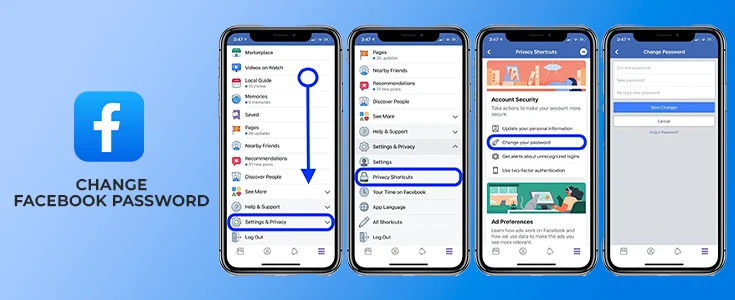
How to Change Your Facebook Password on Mobile
Changing your Facebook password
on mobile is quick and easy. Follow these steps to change your FB password
using the app.
•
Open the Facebook
app on your Android or iOS device.
•
Tap the three
horizontal lines in the top right corner.
•
Scroll down and
tap Settings, then tap Settings and Privacy.
•
Go to Account
Centre and tap Password and Security.
•
Tap Change
Password and select the account you want to update.
•
Enter your
current password, then type your new password twice.
•
Tap Change
Password to save your new FB password.
How Do I Change My Facebook Password on
iPhone?
Many users search for how to
change their password on Facebook using an iPhone. The steps are straightforward.
•
Open the Facebook
app on your iPhone.
•
Tap Settings and
Privacy, then tap Settings.
•
Select Security
and Login from the menu.
•
Tap Edit next to
Change Password.
•
Enter your
current password, then add your new password twice.
•
Tap Save Changes
to confirm your new Facebook password.
How to Change Your Facebook Password on a PC
Desktop users can also easily
change their Facebook password. Here is how you can change FB password on a
computer.
•
Log in to
Facebook using your preferred web browser.
•
Click the
downward arrow icon in the top right corner.
•
Select Settings
and Privacy, then click Settings.
•
Click Security
and Login on the left-side panel.
•
Find Change
Password and click Edit next to it.
•
Enter your
current password and your new password.
•
Click Save
Changes to update your Facebook password.
How Do I Change My Facebook Password if
I Forgot It?
Forgetting your password is
common. You can still change your password on Facebook even if you have
forgotten it. Follow these steps if you are already logged in.
•
Tap Settings and
Privacy in the top right corner.
•
Go to Security
and Login and click Edit next to Change Password.
•
Click Forgotten
Your Password? at the bottom of the form.
•
Follow the
on-screen steps to reset your account password.
•
Make sure you
have access to the email linked to your account.
If you need to do a Facebook
password reset while logged out, continue to the next section.
Facebook Password Reset When You Are Logged Out
Here is how to reset your
Facebook password from the login page.
•
Go to the
Facebook Login page in any web browser.
•
Click Forgotten
Password below the login fields.
•
Go to Find Your
Account and enter your email, phone, or username.
•
Click Search and
follow the instructions that appear on screen.
•
Enter the code
sent to your email or phone number.
•
Create a new
strong password and confirm the change.
Note that you cannot use the
same phone number linked to two-factor authentication for a password reset. You
will need a separate email address or phone number to complete this process.
How to Change Facebook Password Without Old Password
If you do not remember your
current password, you can still reset it. Click on Try Another Way during the
password recovery flow. You can verify your identity using a backup email
address. This lets you reset your Facebook password without knowing the old
one. Always keep a secondary email linked to your account for this reason.
Can You Recover a Facebook Password Without Email and Phone Number?
Yes, Facebook offers an
alternative recovery option. Here is what you can do.
•
Open the Facebook
login page in a browser or app.
•
Click Forgot
Password and then click Try Other Ways.
•
Select Verify
Your Identity with a government-issued ID.
•
Follow Facebook's
instructions to confirm your identity.
•
Once verified, you can
create a new Facebook password.
What if Someone Hacked My Facebook and Changed My Password?
If someone hacked your account
and changed your login details, act quickly. Go to the Facebook login page
immediately. Click Forgot Password and enter your linked email or phone number.
Facebook will send a recovery code to your contact details. Use that code to
regain access to your account. Once inside, update your password right away.
Enable two-factor authentication to prevent future breaches.
How Can I Change My FB Password on Android?
Android users often ask how to
change their FB password on a phone. The process is nearly identical to iPhone.
•
Open the Facebook
app and tap the three-line menu icon.
•
Scroll down and
tap Settings and Privacy, then Settings.
•
Tap Password and
Security under the Account Centre.
•
Select Change
Password and choose the correct account.
•
Fill in your
current and new passwords in the fields.
•
Tap Change Password to
save your updated credentials.
Tips to Keep Your Facebook Account Secure
Knowing how to change your
Facebook password is just the first step. Follow these best practices to stay
safe online.
•
Change your FB
password every three to six months.
•
Never use the
same password across multiple platforms.
•
Enable two-factor
authentication for extra account protection.
•
Use a combination
of letters, numbers, and special characters.
•
Avoid using
personal information like your name or birthday as a password.
•
Do not share your
Facebook password with anyone, ever.
Conclusion
Knowing how to change your
password on Facebook protects your personal data and privacy. Whether you use a
mobile phone, an iPhone, or a PC, the steps are simple and fast. Always keep
your account credentials updated and secure. If you ever forget your password,
Facebook offers multiple recovery options. Use this guide whenever you need to
change your Facebook password or help someone else do the same.




Hi Dear, I'm Meenu, and I've written the posts on this blog. I've tried my best to pack them with helpful info to tackle any questions you might have. I hope you find what you're looking for here. Thanks for sticking around till the end!