

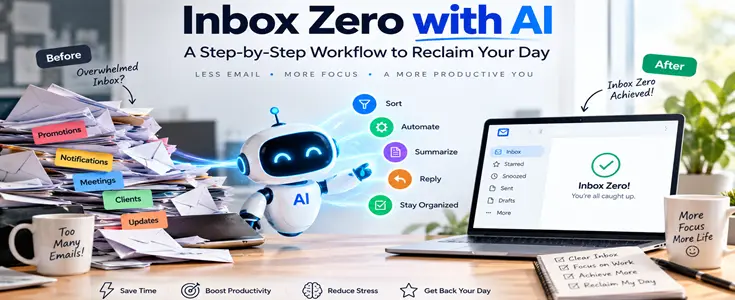
Most of us don't have an email problem. We have a sorting
problem. Newsletters, receipts, and alerts bury the few messages that actually
need us. The average professional gets around 121 emails a day and spends
roughly 28% of the workday managing them, which is over 11 hours a week.
Inbox zero has been around for years, but AI makes it far
more realistic. Summaries, smart sorting, and draft replies take over the
tedious parts, so you can focus on the messages that matter.
What Inbox Zero Actually Means?
It doesn't mean receiving zero emails. It means your inbox
stops acting as your to-do list. Every message gets handled, scheduled, or
filed, so nothing sits there quietly nagging you. AI doesn't change that goal.
It just speeds up the sorting, reading, and first drafts.
The 7-Step Inbox Zero Workflow with AI
This workflow takes about one afternoon to set up and 15 to
30 minutes a day to maintain.
Each step builds on the one before it,
so follow them in order the first time through.
You don't need paid tools, because Gmail
or Outlook is enough to get started.
Step 1: Clean Up First
Before AI can help, you need a manageable pile. Archive
everything older than 30 days. It's still searchable, it just isn't staring at
you anymore. Then spend ten minutes unsubscribing from newsletters and
promotions you haven't opened in months. Searching your inbox for the word
"unsubscribe" finds most of them in bulk. This step matters more than
any tool, because fewer incoming emails means less to sort in the first place.
Step 2: Turn On the AI Features You Already Have
Check your settings before buying anything. Google launched
Gemini-powered Gmail features in January 2026, including thread summaries, an
AI Inbox that prioritizes important messages, and stronger writing tools.
Outlook offers similar help through Microsoft 365 Copilot. Some features depend
on your plan, so if something is missing, look at what your account includes.
Built-in tools are the easiest place to start because there's nothing new to
connect. folderly
Step 3: Set Up Three Labels
Skip the elaborate folder tree. Three labels are enough:
- Action:
needs a reply or task from you
- Waiting:
you're expecting something from someone else
- Reference:
worth keeping for later
Everything else gets archived or deleted. Then create
filters so receipts, alerts, and newsletters skip the inbox and land in a
"Read Later" label.
Step 4: Triage with AI Summaries
Go through your inbox using four choices: delete, do,
delegate, or defer. If it takes under two minutes, do it now. If someone else
should handle it, forward it. Everything else goes to Action. For long threads,
ask your AI tool to summarize the discussion and tell you what decision is
being asked of you. Often a thread needs one line from you, not a careful read
of 30 messages.
Step 5: Draft Replies with AI, Then Edit
Let AI write the rough draft while you supply the judgment.
Give it specifics. For example: "Reply politely to this email, confirm
Thursday at 2 p.m., ask for the agenda, and keep it under 80 words." Then
read the result properly and change anything that doesn't sound like you. AI
can get names, dates, or tone wrong, and a confident-sounding mistake is worse
than a slow reply.
Step 6: Schedule Your Email Time
Constant checking keeps you reactive. Pick two or three
windows a day, say 9:00, 1:00, and 4:30, and deal with email only then. Turn
off push notifications outside those times. It feels uncomfortable for the
first few days, then it starts to feel like getting your afternoon back.
Step 7: Do a Weekly Review
Once a week, spend ten minutes on your Waiting label. Follow
up on anything that has stalled. Check that your filters still catch what they
should, and adjust them if junk is slipping through. This small habit keeps the
whole system from slowly falling apart.
Which Tools Are Worth Using?
Start with Gmail plus Gemini or Outlook plus Copilot. If
your volume is heavy, Superhuman, Shortwave, and Spark are AI-first email apps
worth a trial. Just remember that more helpful automation usually means
granting more inbox access, so permissions matter. Before connecting any
third-party tool, check what it reads, whether it stores your messages, and how
to revoke access. leavemealone
Mistakes to Avoid
- Sending
AI drafts without reading them
- Building
a complicated folder system, you'll abandon in a week
- Treating
zero as a daily scoreboard. A clear inbox at the end of each session is
the goal, not perfection
Conclusion
Inbox zero with AI isn't about a perfect inbox. It's about
spending less time sorting and more time on work that matters. Start with Step
1 today, and in a week your inbox will feel very different.
Frequently Asked Questions
How do I achieve inbox zero with AI?
Clean out old email, turn on the AI features in your inbox,
use three simple labels, triage with summaries, draft replies with AI and edit
them, and check email at set times.
Is it safe to use AI for email?
It can be, as long as you review what AI writes and check
permissions before connecting outside tools. Avoid sharing sensitive
information with apps you don't fully trust.
How long does it take to reach inbox zero?
The first cleanup usually takes one to two hours. After
that, daily upkeep takes 15 to 30 minutes.




Hi Dear, I'm Meenu, and I've written the posts on this blog. I've tried my best to pack them with helpful info to tackle any questions you might have. I hope you find what you're looking for here. Thanks for sticking around till the end!